
How to Transfer an Autodesk Licence to Another Computer: 2026 Guide
A practical B2B guide for engineering teams on moving Autodesk Named User subscriptions to new hardware, managing device limits, and understanding legacy perpetual licence lifecycle boundaries.
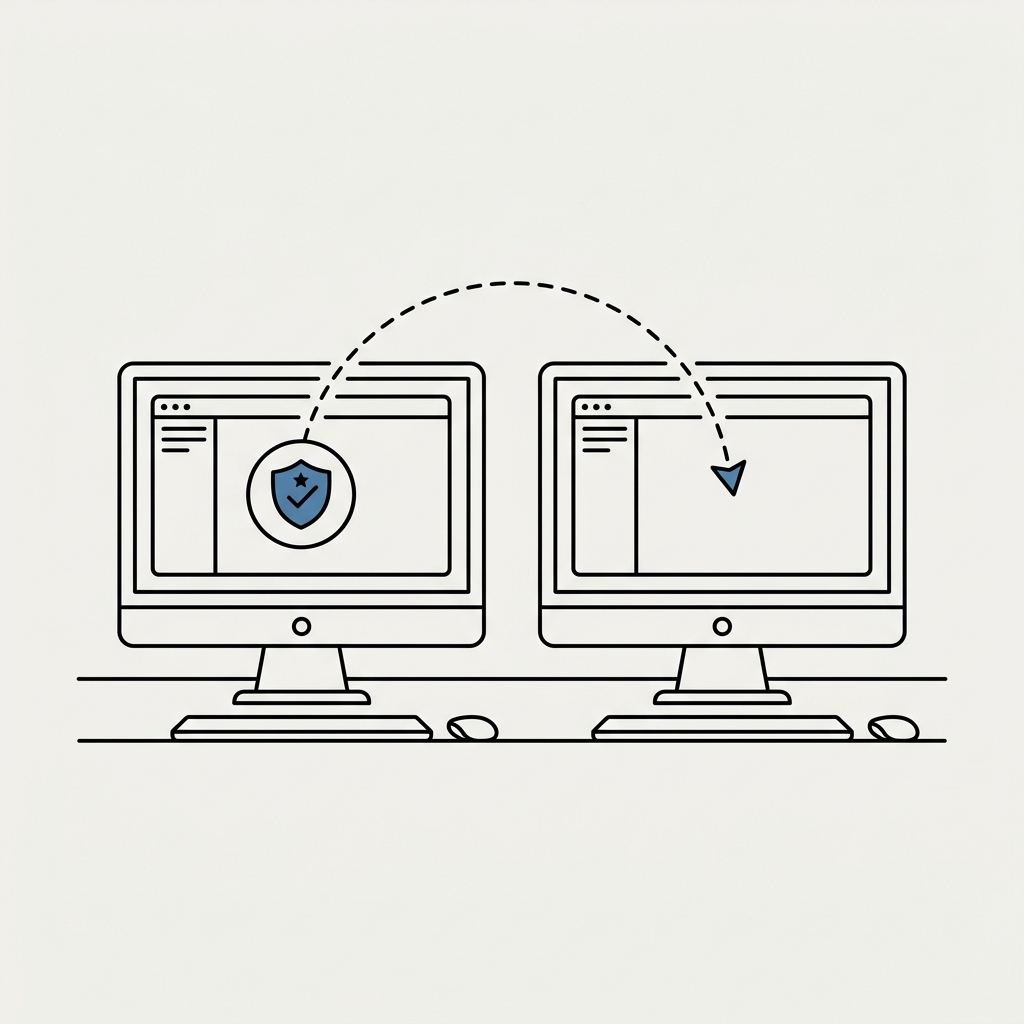
Direct Answer: In 2026, transferring an active Autodesk Named User subscription (e.g. AutoCAD, Revit, Inventor, Civil 3D) to a new computer does not require licence export files or serial numbers. Because modern Autodesk subscriptions are tied to an individual user’s cloud identity rather than a physical hardware hash, you simply install the software on the new workstation and authenticate by selecting “Sign in with your Autodesk ID”. To maintain clean license hygiene, sign out of the software on the old computer before decommissioning or reformatting it. For legacy standalone perpetual licences, automated transfers via the historical License Transfer Utility (LTU) are no longer supported by Autodesk (deprecated since 24 March 2025), requiring manual activation assessment under current Autodesk lifecycle policies.
1. Critical Distinction: Four Separate Licence Scenarios
Before initiating any hardware change or software deployment, engineering leads and CAD managers must distinguish between four distinct administrative operations:
┌────────────────────────────────────────────────────────────────────────┐
│               FOUR DISTINCT AUTODESK LICENCE SCENARIOS                 │
├───────────────────────────────────┬────────────────────────────────────┤
│ 1. HARDWARE MIGRATION (NAMED USER)│ 2. SEAT REASSIGNMENT (NEW USER)    │
│ Same engineer moves to a new PC.  │ Reassigning subscription seat from │
│ Handled via Sign-In on new device;│ Engineer A to Engineer B in cloud  │
│ no admin portal changes required. │ admin portal (manage.autodesk.com).│
├───────────────────────────────────┼────────────────────────────────────┤
│ 3. LEGACY PERPETUAL (STANDALONE)  │ 4. NETWORK / FLOATING POOL (NLM)   │
│ Serial number-based older seats.  │ Shared concurrent seats on LAN.    │
│ Subject to vendor lifecycle &     │ Client points to licence server;   │
│ activation server restrictions.   │ client export is not applicable.   │
└───────────────────────────────────┴────────────────────────────────────┘
A common misconception is confusing hardware migration (an individual engineer getting a new PC) with seat reassignment (transferring a paid seat entitlement to a different employee). Moving to a new computer requires zero changes in the Autodesk Account portal if the user remains the same.
2. Moving Modern Named User Subscriptions (Autodesk ID)
Named User subscriptions (Standard, Premium, and Enterprise plans) validate entitlement dynamically via cloud identity services.
[Old Workstation]                 [Autodesk Cloud Identity]        [New Workstation]
       │                                     │                             │
       ├─ 1. Sign Out (Profile Menu) ───────►│ (Clears local active cache) │
       │                                     │                             │
       │                                     ├─ 2. Download from Portal ──►│
       │                                     │                             ├─ 3. Clean Install
       │                                     │◄── 4. Sign in with ID ──────┤
       │                                     ├─ 5. Entitlement Validated ─►│
Step-by-Step Procedure for the Same User:
- Sign Out on the Old Workstation: Open your Autodesk software (e.g. AutoCAD or Revit). In the top-right title bar, click on your User Profile Name and select Sign Out and Quit. This explicitly releases the cached session token on Autodesk Identity servers.
- Download Product Binaries: On the new computer, log into manage.autodesk.com. Navigate to Products and Services ➔ All Products and Services, select your assigned product release, and download the official installer.
- Execute Clean Installation: Run the installation package with local administrative privileges.
- Authenticate via Autodesk ID: Launch the application. On the startup splash dialogue, select “Sign in with your Autodesk ID”. Enter your corporate credentials (including Single Sign-On / SSO or Multi-Factor Authentication if enforced by your organisation).
- Decommission Old Hardware: If the old machine is being repurposed or retired, uninstall the Autodesk products via Windows Settings or the Autodesk Uninstall Tool to prevent orphaned background licensing services.
3. Understanding Device Limits vs Concurrent-Use Restrictions
Under the Autodesk Terms of Use (General Terms), Named User subscriptions are provisioned per individual person:
- Multiple Device Installations: An authorized Named User is generally permitted to install the software on up to 3 devices associated with their work (e.g. an in-office workstation, a dedicated home office PC, and a portable laptop).
- Strict Prohibition on Concurrency: The subscription remains exclusively assigned to one person. It does not grant rights for multiple individuals to use the software under one account, nor does it allow the same user to run concurrent active sessions on multiple machines simultaneously.
Resolving the “Device Limit Reached” Dialogue:
If you launch an Autodesk product on a new computer while active sessions exist on other registered machines, Autodesk displays a “Device limit reached” dialogue listing the active devices.
┌────────────────────────────────────────────────────────────────────────┐
│                        DEVICE LIMIT REACHED (UI)                       │
├────────────────────────────────────────────────────────────────────────┤
│ "You have reached your device limit. You can pause the product on      │
│  another device to continue on this one."                             │
│                                                                        │
│  [ DESKTOP-OFFICE-01 ]  ──►  [ Pause product ]  or  [ Sign out ]      │
│  [ LAPTOP-MOBILE-04  ]  ──►  [ Pause product ]  or  [ Sign out ]      │
└────────────────────────────────────────────────────────────────────────┘
You do not need to contact Autodesk support. Clicking “Pause product” or “Sign out” next to the remote inactive device immediately frees the active session token for your new workstation.
4. Reassigning a Subscription Seat to Another Employee
If an engineer leaves the organisation or transitions to a non-design role, the subscription seat must be reassigned administratively in the cloud portal:
- A designated Primary Admin or Secondary Admin logs into manage.autodesk.com.
- Navigate to User Management ➔ By User (or By Product).
- If onboarding a new employee, click Invite Users and enter their corporate email address.
- Locate the previous employee, click Assign Products, uncheck the allocated software seat, and reassign it to the new user.
- The new user receives an automated onboarding email to create their Autodesk ID password and access software downloads.
5. Legacy Standalone Perpetual Licences & Lifecycle Boundaries
For design offices maintaining older perpetual standalone licences (serial number and product key models, versions 2011–2020), hardware migration requires understanding vendor lifecycle restrictions.
Historical Context: Deprecation of the License Transfer Utility (LTU)
Historically, standalone perpetual licences were exported and imported across machines using the License Transfer Utility (LTU). However, Autodesk officially announced the end of support and retirement of LTU on 24 March 2025.
Consequently, LTU is no longer a supported mechanism for migrating legacy licences in 2026.
Legal Entitlement vs Technical Activation in 2026:
When planning hardware upgrades for older perpetual seats, corporate procurement and IT teams must distinguish between legal rights and vendor technical availability:
- Statutory Transfer Entitlement: Under Directive 2009/24/EC and CJEU Case C-128/11 (UsedSoft v Oracle), perpetual software licences lawfully acquired within the EU/EEA carry an exhausted distribution right, allowing secondary ownership transfer as detailed in our EU used software legality guide.
- Vendor Support & Activation Server Lifecycle: Under Autodesk’s Previous Version Support policy, automated activation servers for retired releases (particularly versions older than the active subscription n-3 window) may be deactivated or restricted. If an un-exported legacy machine suffers catastrophic hardware failure, vendor-assisted reactivation cannot be unconditionally guaranteed.
- Strategic Procurement Alternative: To mitigate the risk of obsolete software lock-in while avoiding high retail subscription prices, European engineering firms frequently deploy verified secondary perpetual licences or optimized subscription bundles, as analysed in our guide on cost-effective Autodesk procurement in Europe.
6. Network / Floating Multi-User Licence Deployments
If your organization operates floating network licences managed centrally via FlexNet Publisher / LMTOOLS:
- Client PC Replacement: No individual licence deactivation or export is required on the workstation. Simply install the software on the new client PC and configure the licensing dialog to point to the internal licence manager hostname (e.g.
@licenceserver.domain.localor port27000@192.168.1.50). - Licence Server Migration: Migrating the central server host itself requires generating a new Network Licence File (
.lic) tied to the replacement server’s MAC address (Host ID), as covered in our technical analysis of cloud vs on-premise CAD licence servers.
7. Troubleshooting Common Migration Issues
| Issue / Error Symptom | Root Cause | Verified Resolution |
|---|---|---|
| ”Device Limit Reached” | Active session running concurrently on another registered computer. | Select “Pause product” or “Sign out” on the inactive machine listed in the dialogue. |
| ”Subscription Expired / Contact Admin” | Seat unassigned in portal or contract billing lapse. | Verify user assignment under User Management in manage.autodesk.com. |
| ”Autodesk Identity Manager Error” | Outdated WebView2 runtime or corrupted Identity component. | Download and install the latest Autodesk Identity Manager Component update from Autodesk Support. |
| ”Network Licence Not Available (-15.570.0)“ | Client unable to reach licence server port 2080 or 27000–27009. | Verify firewall port routing and ensure DNS resolves the server hostname correctly. |
8. Frequently Asked Questions (FAQ)
Does transferring an Autodesk Named User subscription incur any vendor fee?
No. Moving an active Named User subscription to a new workstation for the assigned employee is entirely self-service and free of charge through standard Autodesk ID authentication.
Can two engineers share one Named User subscription if they work in different shifts?
No. Autodesk General Terms strictly prohibit credential sharing or concurrent user multiplexing under single-user licences. Each individual user requiring access must be assigned their own dedicated Named User subscription or utilize Autodesk Flex pay-per-day tokens.
How do I transfer my custom AutoCAD settings, plot styles, and tool palettes to the new PC?
Licensing authentication does not migrate local application settings. On the old PC, open the Windows Start Menu and run “Export AutoCAD Settings” to generate a .zip migration archive. On the new PC, run “Import AutoCAD Settings” before launching the software.
What should we do with our unused Autodesk licences when upgrading workstations?
If your firm holds perpetual licences that are no longer utilized following a hardware consolidation, European law permits reselling those surplus software assets. You can review valuation options directly on our licence acquisition portal or consult our procurement specialists.
9. Primary Technical Sources & Official Documentation
- Autodesk Terms of Use: General Terms (Named User Entitlements and Concurrency Restrictions) — autodesk.com/company/terms-of-use/en/general-terms (Checked: August 2026)
- Autodesk Official Support: Sign In Licensing & Managing Active Devices — knowledge.autodesk.com (Checked: August 2026)
- Autodesk Official Support: Deprecation Notice for License Transfer Utility (LTU) — Retired 24 March 2025 — autodesk.com/support/technical (Checked: August 2026)
- Autodesk Lifecycle Policy: Previous Version Support and Activation Availability — autodesk.com/support/download-install/individuals/manage/previous-version-support-policy (Checked: August 2026)
- Court of Justice of the European Union: Case C-128/11 UsedSoft GmbH v Oracle International Corp. (Directive 2009/24/EC) — eur-lex.europa.eu (Checked: August 2026)
Andrzej Stasz
InnoSfera EU